Key facts
- Subvo creates a free whole-video preview from your uploaded footage before checkout.
- Check transcription, timing, readability and placement across the complete clip at normal playback speed before inspecting individual frames.
- The paid final export uses the final rendering pipeline and may provide improved transcription accuracy and sharper rendering than the browser preview.
Quick summary
A useful pre-payment caption preview lets you review transcription, timing and styling across your complete clip while keeping the paid final export distinct.
Automatic captioning is unusually difficult to judge from a product screenshot. A polished demo says little about your microphone, accent, background music, speaking pace or visual composition. The useful evidence is the service working on the clip you intend to publish.
That is why preview-before-payment matters. It moves the quality decision to a point where you can still stop. A whole-video preview is especially useful because you can inspect changing audio, backgrounds and composition instead of judging the clip from one moment.
What makes a caption preview useful
The strongest preview uses the uploaded video rather than a template or generic sample. It shows captions over moving footage with the audio available, because transcription, timing and design interact. A still image can demonstrate a font but not whether phrases arrive with the speaker or remain readable while the scene changes.
- It is generated from your actual uploaded media.
- The interface makes clear that the whole uploaded video is available to preview.
- You can play captions with audio across the complete clip at normal speed.
- The style and placement shown are connected to the paid output.
- The product is clear about supported controls and whether transcript editing is available.
- The price and next step are visible before you commit.
Coverage matters because caption problems are not evenly distributed. A whole-video preview lets you move between the start, visually busy sections, scene changes, long phrases and the ending. That broader view makes it easier to judge the complete experience before deciding whether to export.
Make four checks at normal playback speed
| Check | What to watch | Reason to stop |
|---|---|---|
| Transcription | Speech throughout the clip is present and recognisable. | Large sections are missing or the words change the meaning. |
| Timing | Captions appear close to the matching speech. | Text consistently leads or lags the speaker. |
| Readability | Phrases can be absorbed without pausing. | Text is too small, crowded, brief or low contrast. |
| Placement | Important faces, products and actions remain visible. | Captions obscure the subject or fight with existing graphics. |
Start by watching once without pausing. That recreates the viewer's experience and reveals whether reading feels natural. On a second pass, stop on any missed word, awkward line break or visual collision. A frame-by-frame inspection should explain a problem you noticed in motion, not replace the motion test.
Do not ignore the audio. Loud music, overlapping speakers and distant microphones can affect the transcript at any point. If a section is poor because the speech is hard to hear, a different typeface will not solve it. Improve the source audio or choose a workflow that supports the corrections you need.
Use the preview for style decisions it can support
Compare styles on the same section instead of relying on memory. Look for stable contrast, appropriate size, phrase grouping and emphasis that matches the tone of the speaker. Strong animation may fit a punchy clip and distract from a calm explanation.
Placement should be evaluated against everything visible across the clip. Check whether captions cross faces, products or demonstrations, and whether they compete with platform-interface areas as the composition changes. Our caption-style guide gives a complete decision checklist.
Know what a whole-video preview can and cannot prove
A whole-video preview lets you inspect later speakers, new background noise, unusual names, music changes and visually different scenes before checkout. That is much more useful than judging one section, but it does not guarantee that every word is correct or that the browser preview and paid final export will be identical.
- Check a noisy interview section as well as any clean, quiet speech.
- Review every speaker, accent and microphone represented in the clip.
- Compare caption contrast over dark, bright and detailed backgrounds.
- Listen carefully around names, slang and technical terms.
- Remember that previewing the complete clip is not the same as having transcript-editing controls.
Use those limits to choose the right tool. For a sensitive legal statement, dense technical script or accessibility-critical delivery, you may need a full transcript or timeline editor. Subvo includes multiple caption-word fixes in one corrected version after rendering, but its focused preview-and-export workflow is better suited to lower-risk short-form clips with clear speech.
What the Subvo preview shows
Subvo creates a free browser preview for the whole uploaded video. You can play the complete clip, move to different moments and review caption timing and styling before checkout. The preview does not provide transcript editing, and automatic transcription may still contain errors.
The style interface supports preset, impact, size and supported placement choices. Placement is limited to options such as auto, top and bottom rather than free dragging or timeline-level positioning. After checkout, Subvo creates the finished captioned MP4 through its final rendering pipeline using the selected treatment.
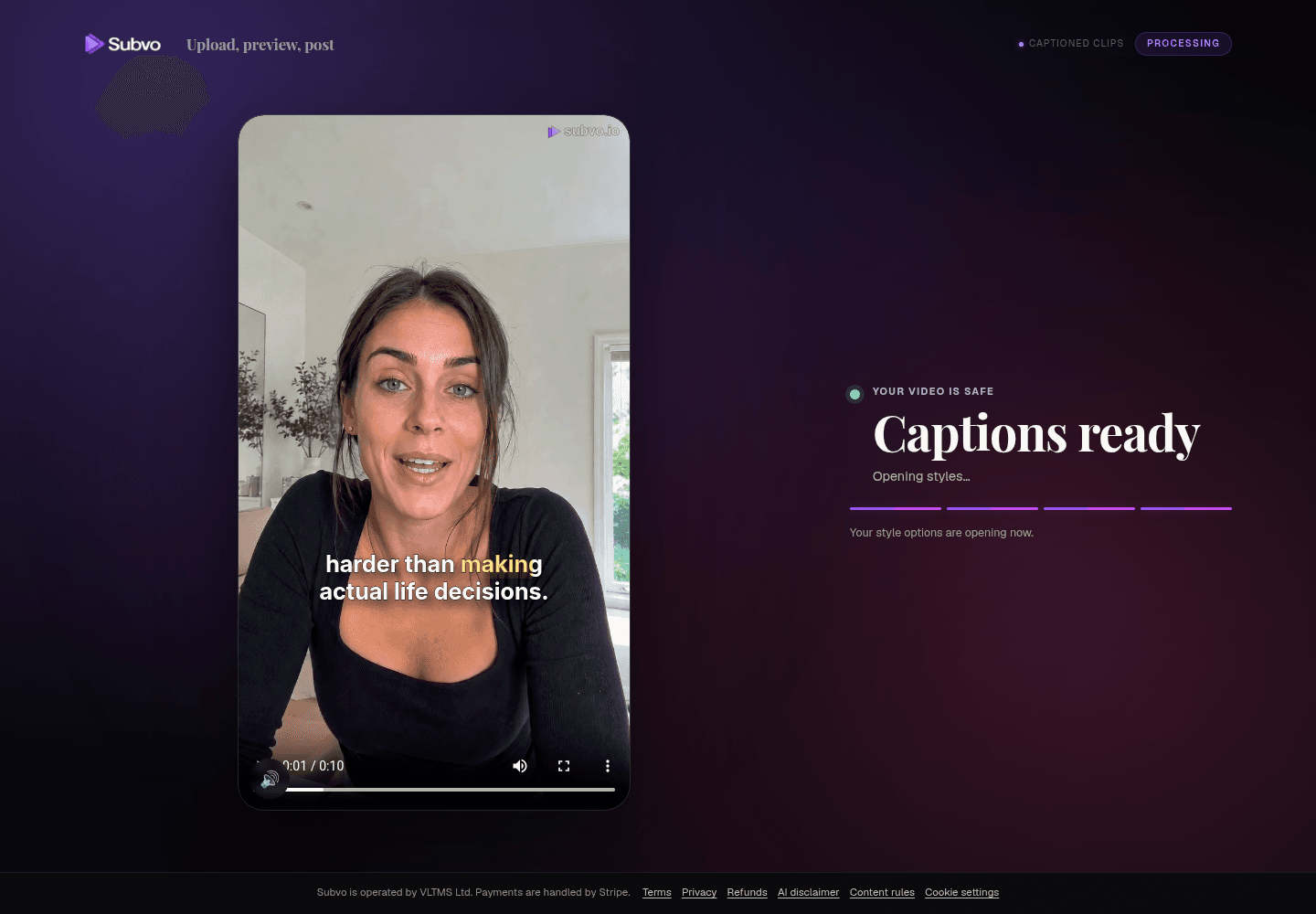
The whole-video preview is free. Subvo charges a one-time £1.99 payment if you choose the finished export and does not currently present a subscription. The final export may provide improved transcription accuracy and sharper rendering than the browser preview. The pricing page records the current offer, while the online-caption guide covers preparation and automatic-caption limitations.
Before paying for the final export
- Watch the whole preview once at normal speed with audio.
- Inspect the start, busy sections, scene changes, long phrases and ending.
- Check transcription, timing, readability and visual collisions throughout.
- Check placement around faces, products and likely platform-interface areas.
- Compare supported styles in motion rather than relying on still frames.
- Confirm the chosen style and supported placement.
- Check the price, output format, availability window and recovery method.
- Review the complete preview before deciding whether to export.
If that workflow suits your clip, you can start a Subvo whole-video preview without a mandatory account. Use the finished edit and review the complete video before checkout.
Prepare a clip for a useful preview
Use the final edit so the whole-video preview reflects the clip you plan to publish. Do not trim or rearrange the video merely to create a more favourable test; scene order, silence and pacing are all part of the experience you should review before exporting.
Listen across the complete clip before upload. If the voice is difficult for you to hear in any section, automatic captioning will face the same source problem. Reduce overpowering music in the edit, select the correct master and avoid uploading a low-quality messaging-app copy when the original is available.
Finally, use the whole-video coverage. A consistent talking-head clip may need only a straightforward pass, while a multi-speaker montage deserves closer checks at every change in sound, speaker and background. Previewing the complete video gives you the opportunity; careful review is still your responsibility.
"A trustworthy preview does not promise certainty; it makes the remaining uncertainty visible before you pay."
FAQ
What should I check in an auto-caption preview?
Check whether speech was captured, whether words appear close to the audio, whether phrases are readable at normal speed, and whether styling or placement obscures important parts of the footage.
Does the whole-video preview prove every caption will be correct?
No. It lets you review captions across the complete clip, but automatic transcription can still contain errors. Inspect different speakers, audio conditions and scenes, and do not assume the browser preview and final export will be identical.
How much of a video does Subvo preview?
Subvo creates a free preview for the whole uploaded video, so you can review caption timing and styling across the complete clip before checkout.
Subvo
Judge the captions on your own video.
Upload your clip and review its caption timing and styling before deciding whether the £1.99 final export is right for you.
Related posts
How to choose a caption style for short-form video
Choose caption styling in motion, not from a still. Start with readability, then check placement, phrase length, emphasis and how the style behaves over the actual footage.
Pay-as-you-go video captioning vs monthly subscriptions
Pay per export when caption jobs are occasional and already edited; consider a subscription when frequent publishing, saved projects, collaboration or broader editing tools justify the recurring cost.
How to add captions to a video online
You do not need to reopen a full editing project just to add captions. Upload the finished clip, preview the complete video, choose a readable style, and export when ready.