Key facts
- Play the free whole-video preview before paying, while you still have the option to stop and use a different clip or workflow.
- Burned-in captions remain visible when the MP4 is reposted across different social platforms.
- Clear audio and readable styling both matter. Accurate words are not enough if viewers cannot comfortably read them.
Quick summary
You do not need to reopen a full editing project just to add captions. Upload the finished clip, preview the complete video, choose a readable style, and export when ready.
You finish editing a video, watch it back, and realise it still needs captions. The obvious option is to reopen the project, return to the timeline, generate the text, adjust the styling, and export the whole thing again.
That works, but it is often more effort than the final job requires. When the clip is already finished, adding captions can be treated as its own short workflow rather than another editing session.
Step 1: Prepare the video
Start with the version you actually plan to publish. Finish the trimming, audio changes, transitions, and other edits first. Otherwise, you may end up adding captions to a draft and repeating the work later.
Listen to the speech before uploading. Automatic captions work best when the speaker is easy to hear. A quiet microphone, overlapping voices, or loud music can cause missed or incorrect words.
Use the finished clip exactly as you intend to publish it. Because Subvo previews the whole video, you can review silence, speech, scene changes and the ending in context before checkout rather than rearranging the edit for a limited sample.
- Use the final edited version of the clip.
- Check that speech is loud enough to understand throughout.
- Avoid music that overpowers the speaker.
- Watch for several people speaking at once.
- Make sure you have selected the correct file before uploading.
Step 2: Upload the clip and generate a preview
Once the video is ready, upload it to your chosen caption tool. Subvo creates a free browser preview for the whole uploaded video, giving you the complete clip to review before checkout.
Upload and preview timing can vary with file size, connection quality, and current demand. Do not judge the result from a loading screen. Wait until the actual caption preview is available.
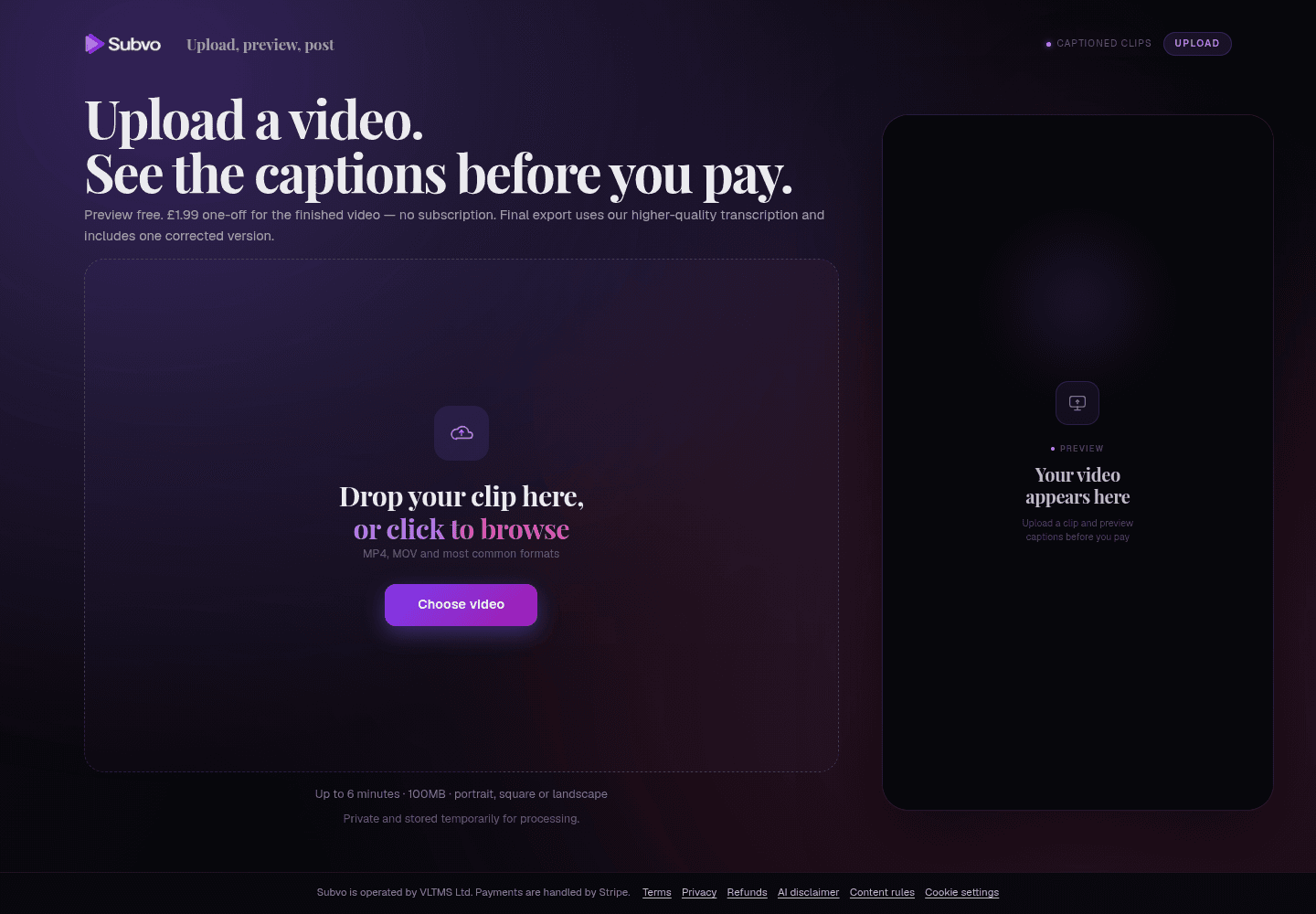
What the Subvo preview shows
Subvo generates a whole-video preview so you can judge caption timing and styling across the complete clip before paying. Play it from start to finish and seek to different moments where the audio, background or composition changes.
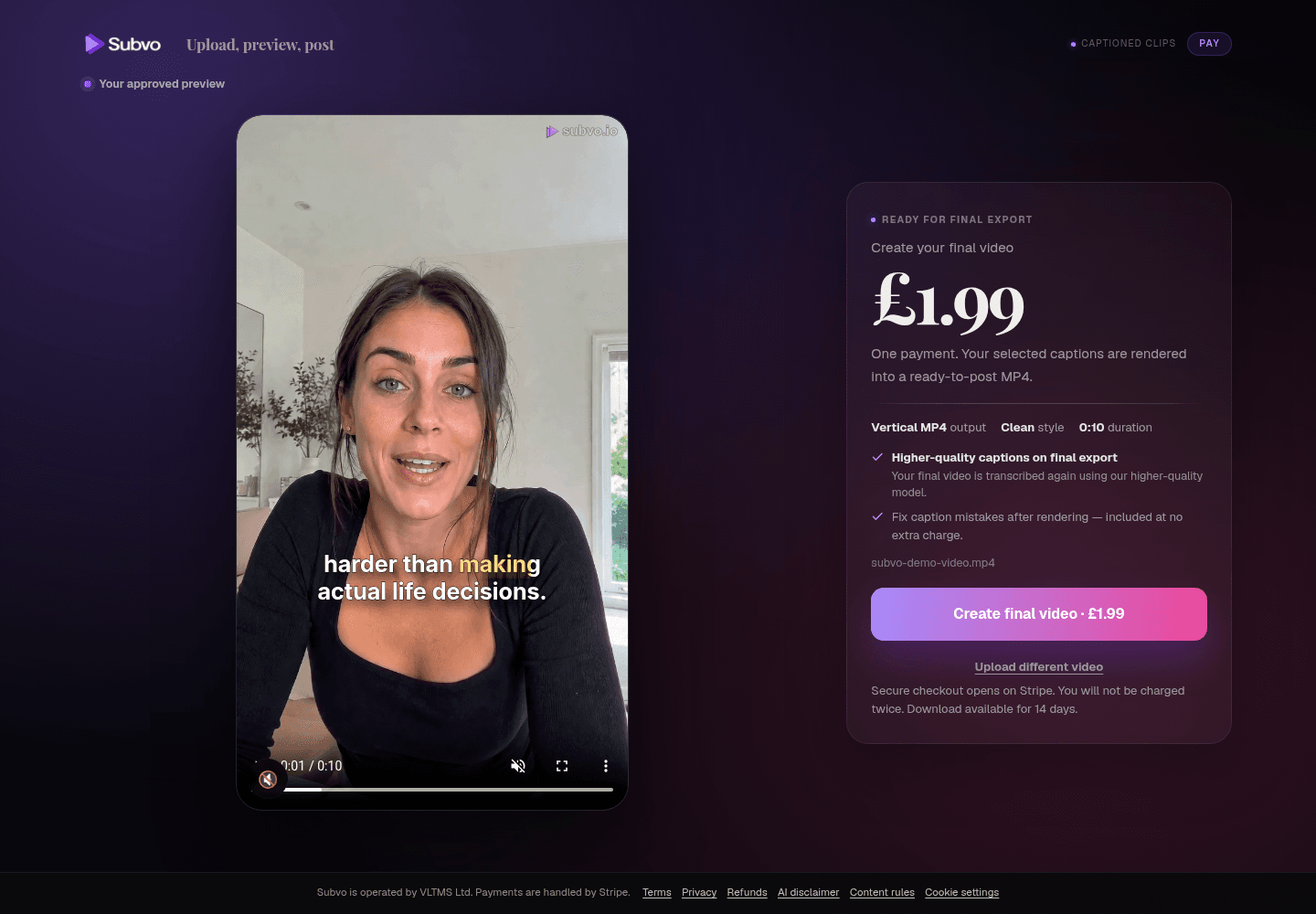
The browser preview lets you inspect the complete video, but it does not provide transcript editing or guarantee every word is correct. After checkout, Subvo generates the finished captioned MP4 through its final pipeline, which may provide improved transcription accuracy and sharper rendering than the preview. After rendering, you can fix multiple caption words in one corrected version at no extra charge, although Subvo is not a full transcript or timeline editor.
Step 3: Inspect the preview properly
This is the step people rush. Do not look at one caption frame and immediately export. Play the whole preview at normal speed and watch it like a viewer would.
- Check whether spoken phrases are picked up across the complete clip.
- Look for obvious missed or incorrect captions in different sections.
- Make sure captions appear close to the words being spoken.
- Check placement around faces, products and likely platform-interface areas.
- Watch for awkward line breaks or captions that disappear too quickly.
- Review the start, busy scenes, transitions, longest phrases and ending.
- Stop if the preview is clearly unsuitable. Do not assume the final pipeline will correct every error.
Step 4: Choose a caption style people can read
The most dramatic style is not always the best one. Captions need to remain readable while the video is moving, especially on a small phone screen.
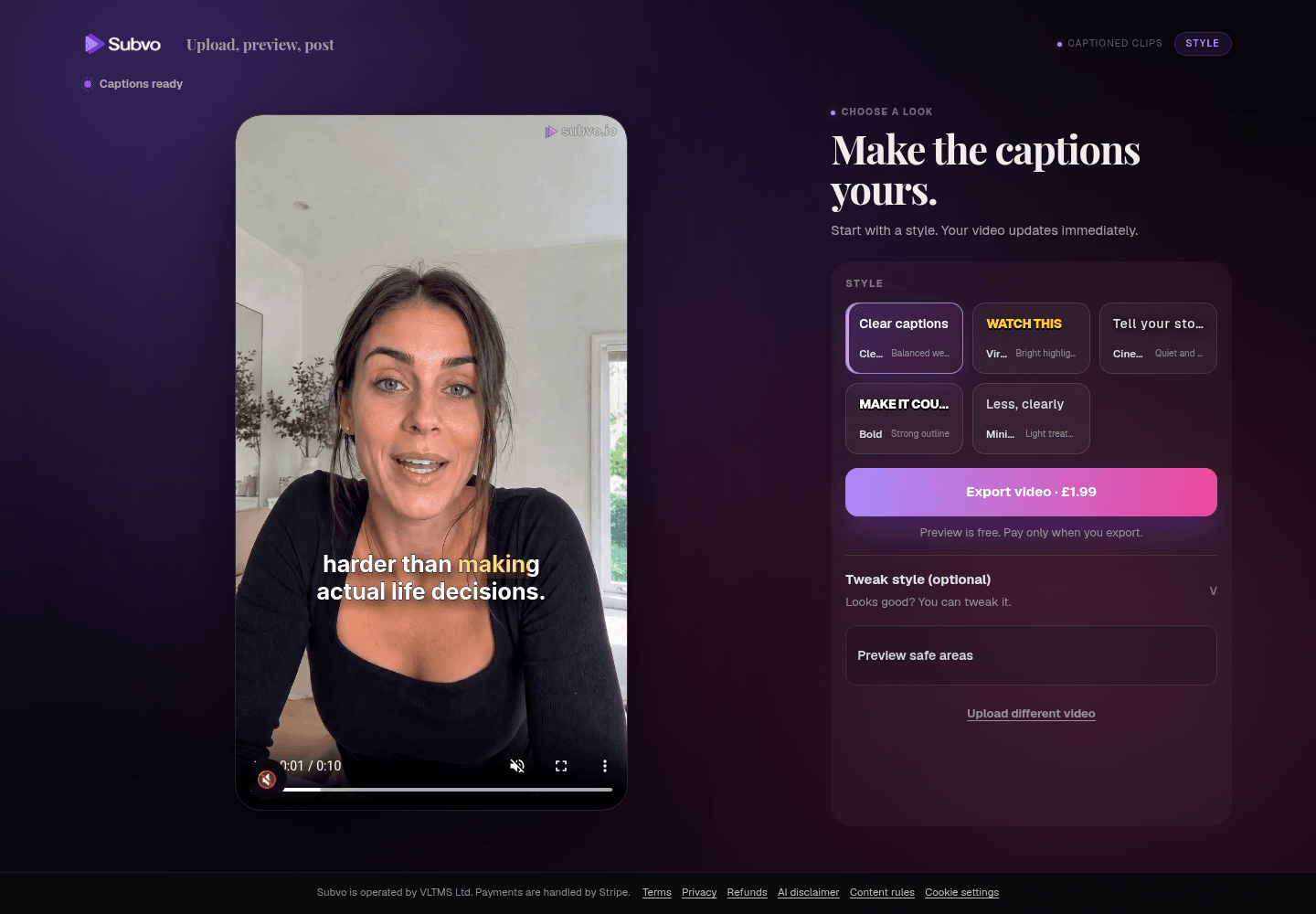
Use different moments across the whole-video preview to judge readability. Strong contrast, sensible sizing and clear spacing usually matter more than decorative effects. Compare styles in motion and check changing backgrounds before deciding. The caption-style guide provides a more detailed checklist for matching treatment to footage and speaking pace.
| Check | Why it matters | What to look for |
|---|---|---|
| Text size | Small captions are difficult to read on a phone. | The words should be clear without taking over the whole frame. |
| Contrast | Text can disappear against bright or detailed footage. | Check changing backgrounds across the complete preview, not only one paused frame. |
| Position | Captions can cover faces, products, or platform controls. | Use the supported preset placement options to keep text from fighting with the subject. |
| Line breaks | Awkward wrapping makes captions harder to follow. | Look for phrases split in places that feel unnatural. |
| Timing | Late or early text makes the video feel disconnected. | Captions should appear close to the matching speech. |
Burned-in captions or a subtitle file?
Burned-in captions become part of the video image. Once the MP4 is exported, the words remain visible wherever the file is uploaded or shared.
That makes burned-in captions convenient for TikTok, Instagram Reels, YouTube Shorts, client previews, and reposting. You do not need to upload or manage a separate subtitle file.
SRT and VTT files work differently. They stay separate from the video and can be switched on or off by supported players. They are useful for accessibility, translation, and longer-form platforms, but they depend on the destination supporting subtitle tracks.
How the Subvo workflow works
Subvo is designed for videos where the main edit is already complete. Open the Subvo upload page, add the clip, review the generated captions, choose a preset and adjust impact, size and supported auto, top or bottom placement, then decide whether to export.
The preview-before-payment flow is deliberate. Caption quality depends heavily on the original audio, and not every clip will produce a result worth exporting. Seeing the whole-video browser preview first gives you a chance to judge timing and styling across the complete experience. The paid final export is then processed through the final rendering pipeline and may have improved transcription accuracy and sharper output. Read what a useful caption preview should show for a complete review checklist.
When automatic captions struggle
Automatic captions are useful, but they cannot recover speech that is barely audible. They can also struggle when several people speak over each other or when music competes with the voice.
- Very quiet or distant speakers.
- Music playing over spoken words.
- Several people talking at the same time.
- Heavy background noise.
- Muffled microphones.
- Unusual names, slang, or specialist terminology.
Sometimes the best fix is not a different caption style. It is clearer source audio. If the preview misses large parts of the speech anywhere in the clip, improve the recording or clean the audio before trying again.
When you still need a full editor
A caption-focused tool is not the right answer for every video. Use a full editor when you still need to trim clips, remove mistakes, mix audio, add transitions, place overlays, or redesign the frame.
But once those jobs are finished, captions do not need to become another large editing project. A simple upload, preview, and export flow may be all you need.
FAQ
Can I add captions without editing the whole video again?
Yes. When the main edit is already finished, you can use a caption-focused tool instead of reopening a timeline. Upload the clip, preview captions across the whole video, choose a style, and export the captioned version after checkout.
Should I use burned-in captions or an SRT file?
Burned-in captions are part of the video itself and stay visible wherever the MP4 is posted. SRT files remain separate and are better suited to platforms or players that support optional subtitle tracks.
What videos work best with automatic captions?
Videos with clear speech and limited background noise usually produce the best results. Very quiet voices, overlapping speakers, and loud music can make automatic captions less reliable.
Subvo
Add captions to your edited video.
Upload the clip, review the generated captions, choose a style, and pay £1.99 only if you want the finished captioned MP4.
Related posts
How to choose a caption style for short-form video
Choose caption styling in motion, not from a still. Start with readability, then check placement, phrase length, emphasis and how the style behaves over the actual footage.
Preview captions before paying: what a useful preview should show
A useful pre-payment caption preview lets you review transcription, timing and styling across your complete clip while keeping the paid final export distinct.
CapCut alternatives for auto captions: a workflow comparison
A useful CapCut-alternatives comparison starts with the work left on your video, then verifies each product's current workflow, limits, and price at the source.